

Finish and pass a course
When a course counts as passed, what the end screen shows, and what chapter order, a maximum time and a deadline change.
In Take a course
You pass a course when you have passed the quiz for each of its chapters. Seeing all the slides is not enough.
When is a course passed?#
- A chapter quiz is passed when your best score reaches the Passing threshold shown in the table of contents.
- The course is passed when all its chapter quizzes are passed.
Once you have passed the course, it changes to Completed in My trainings, with the date. The table of contents shows the Training completed badge, and the deadline badge disappears.
The end-of-course screen#
After the result of the last chapter's quiz, an end screen appears and the avatar sums up how you did, out loud.
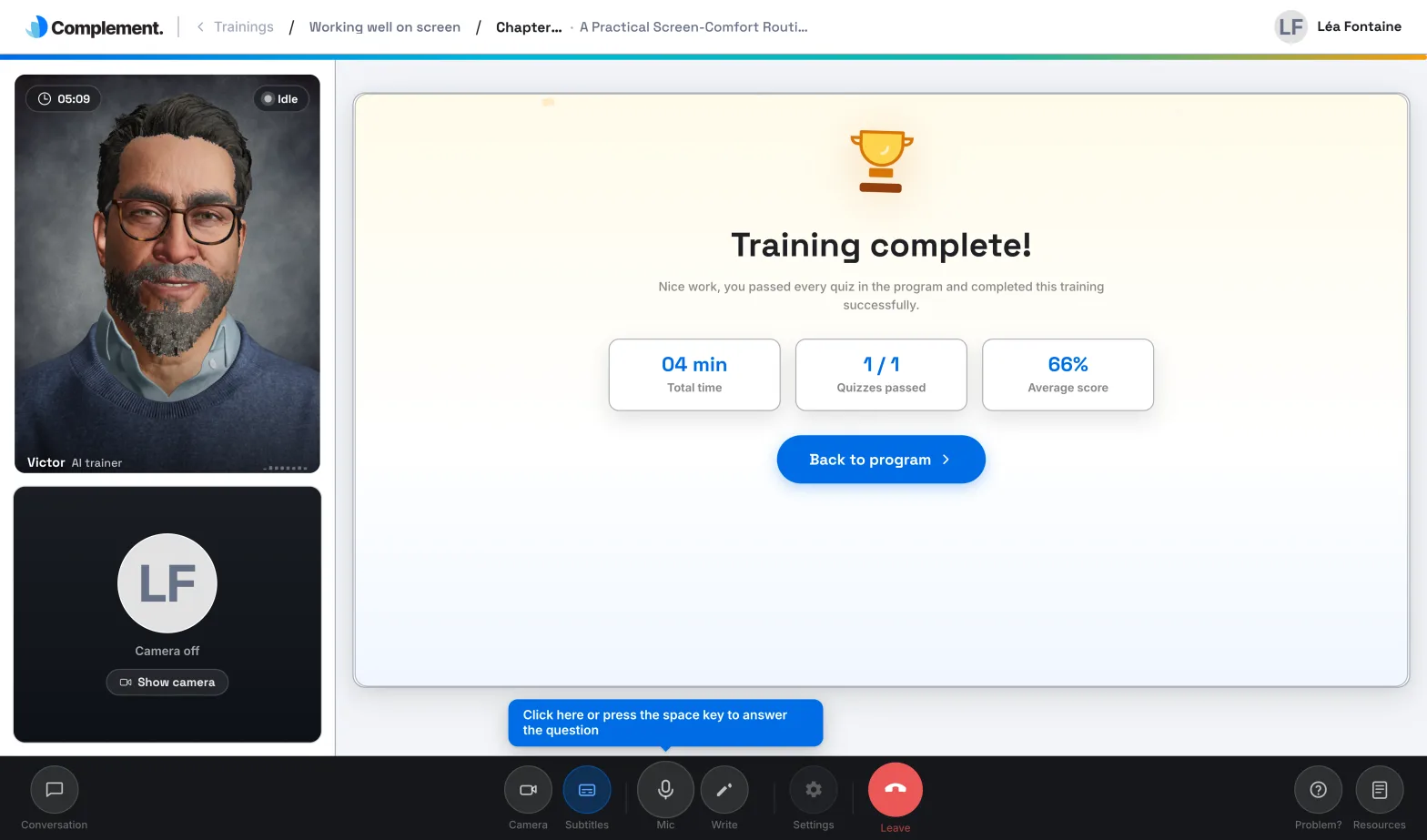
If all the quizzes are passed, the screen shows "Training complete!" and three figures:
- Total time: your time spent on the course;
- Quizzes passed: the number of chapter quizzes passed;
- Average score: your percentage of correct answers across all the quizzes.
Click Back to program to go back to your courses.
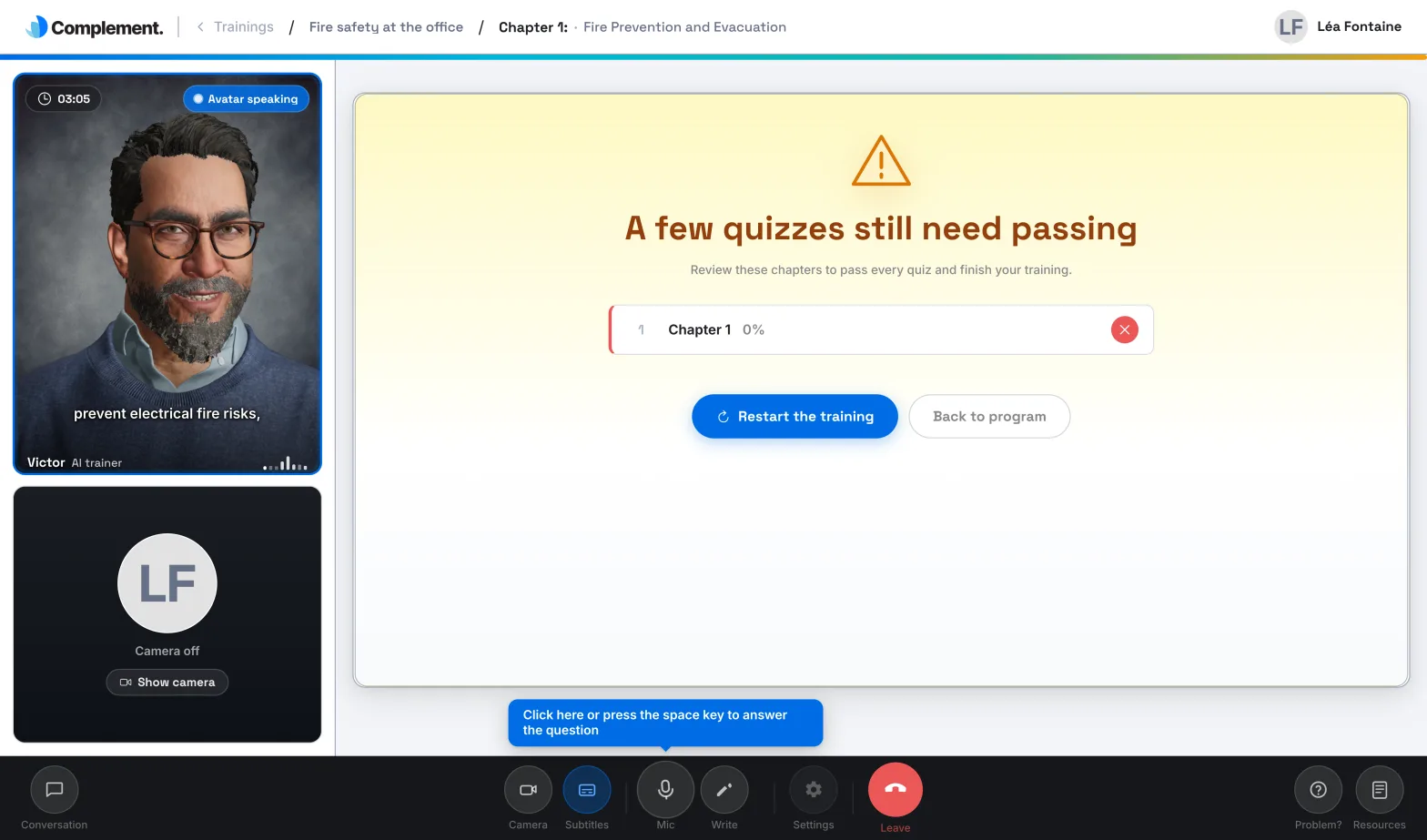
Otherwise, the screen shows "A few quizzes still need passing" and the list of chapters, each with its score and a tick or a cross.
- Restart the training takes you back to the table of contents. Despite its name, this button does not erase anything: just retake the quizzes you have not passed with the Retry button.
- Back to program takes you back to your courses.
If the chapters must be taken in order#
A chapter stays Unavailable until you have finished the quiz of the previous chapter. The course may also require you to see all the slides in a chapter before its quiz. See Use a course's table of contents.
If the course has a maximum time#
The table of contents then shows the Maximum allocated time and your Time spent. Time is counted during your sessions. Pauses for inactivity are not counted.
When the maximum time is reached, the session stops. The window "You've reached the time limit for this training", followed by the maximum time, tells you that you can no longer continue the course. Click Go back to the home page.
If you had not passed the course, it changes to Unavailable in My trainings, and the buttons in the table of contents are disabled. If you think this is a mistake, contact your administrator.
If the course has a deadline#
The Limit date appears in the table of contents, and a deadline badge appears on the course card. See Find your courses.
Until you have seen all the slides in the course, you may receive reminder emails titled "The deadline for your course is approaching". Once the date has passed, the course stays available: the badge shows how many days ago it expired.
Review a completed course#
A course you have passed stays available. In the table of contents, click Review to restart a chapter, or Retry to retake a quiz. Your pass is kept.
Was this article helpful?
Thank you for your feedback!
Thank you. Tell us what is missing through Help and support in the app, and we will complete the article.