

Use a course's table of contents
Start, resume or review a chapter, retake a quiz and view the resources from a course's table of contents.
In Take a course
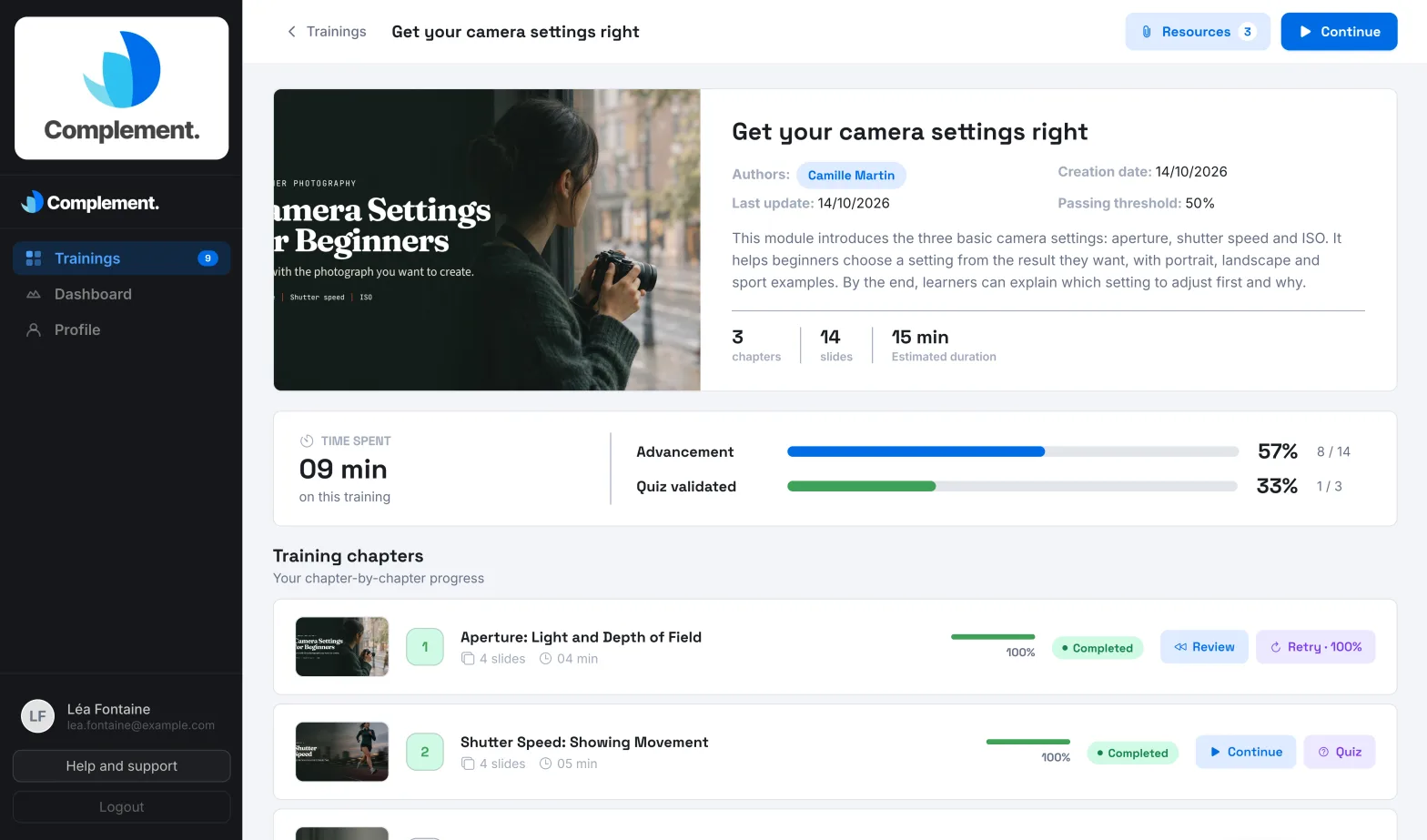
The table of contents is a course's home page. It presents the course, your progress and the list of chapters. This is where you start, resume or review each chapter.
Open the table of contents#
- From My trainings, click the course card.
- During a session, click the course title in the top bar, or click Leave: you go back to the table of contents.
At the top of the page, the Trainings button takes you back to your list of courses.
Course information#
At the top of the table of contents, you find:
- the title, the Authors, the Creation date and the Last update;
- the Passing threshold: the percentage of correct answers you need to pass a chapter quiz;
- the Maximum allocated time and the Limit date, if the course has them;
- the description, the number of chapters and slides, and the Estimated duration.
Just below, a card sums up your progress:
- Time spent: your time on this course, compared with the maximum time if there is one;
- Advancement: the share of slides you have seen;
- Quiz validated: the number of chapter quizzes passed.
Once you have passed the course, the Training completed badge appears next to the title.
Start a chapter#
Each chapter shows its number of slides, its estimated duration, the slides already seen and a status: Not started, In progress, Completed or Unavailable. Its buttons depend on your progress:
| Button | What it does |
|---|---|
| Start | Starts the chapter at its first slide. |
| Continue | Resumes the chapter in progress where you left off. |
| Review | Restarts a chapter you have already seen from its first slide, without erasing your progress. |
| Quiz | Opens the end-of-chapter quiz directly. |
| Retry, followed by a percentage | Starts a quiz you have already taken again. The percentage is your best score. |
The highlighted button shows the next chapter to take. The Continue button in the top bar takes you straight back to where you left off in the course.
Locked chapters#
Some courses require you to take the chapters in order. In that case, a chapter stays Unavailable until you have taken the quiz of the previous chapter. When you hover over the chapter, you read "Complete the previous chapter to unlock this one".
You only need to have answered all the questions in that quiz, even if you did not pass it. To pass the course, you will still need to pass every quiz.
Other messages can appear when you hover over the buttons:
- "View the required slides before starting the quiz.": the quiz opens once you have seen all the slides in the chapter;
- "You've reached the time limit for this training": the maximum time has been reached and the buttons are disabled. See Finish and pass a course.
View the resources#
The creators of the course can share documents and links with you.
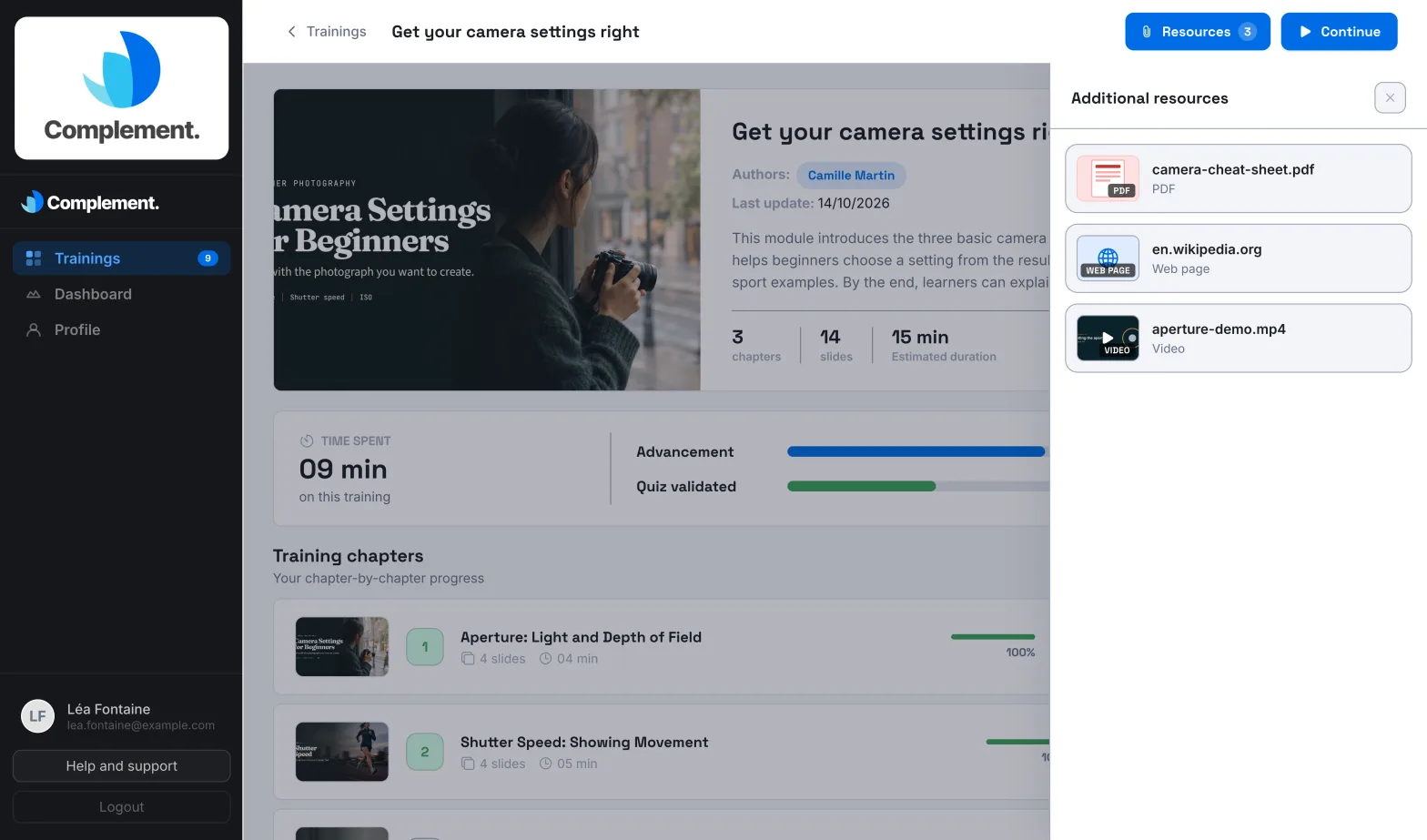
- Click Resources, at the top right. The number shows how many resources there are.
- In the Additional resources panel, click a resource: Web page, PDF or Video. It opens in a window.
- Click Open in a new tab if a page does not display.
If the button is greyed out, the course has no resources for now. The same resources are available during a session.
Was this article helpful?
Thank you for your feedback!
Thank you. Tell us what is missing through Help and support in the app, and we will complete the article.