

Edit a slide visual with AI
Describe the change you want and AI regenerates the slide. Find its previous versions, restore one, or simply replace the image.
In Create a course
- Understand the structure of a course
- Create a course
- Generate a course with AI
- Import a PDF or images
- Organise chapters
- Edit a slide
- Write the avatar script
- Edit a slide visual with AI
- Add interaction questions and surveys
- Add a video
- Create the end-of-chapter quiz
- Add resources to a course
- Saving and editing with others
- Preview a course
- Publish a course
- Course settings
- Course completion rules
- Trainer rights on a course
- Manage your courses
- Export a course to PDF
The Edit visual button, below each slide, adapts to where the slide came from. On a slide created by AI, it regenerates the visual from your instructions and keeps a version history. On other slides, it replaces the image.
Before you start#
You must be able to edit the course: see Trainers' rights on a course. To edit a visual with AI, these conditions must also be met:
- the slide comes from an AI generation, of a course or of a chapter, and still has a visual produced by AI;
- AI generation is active for your platform: it is by default, and your Complement account manager can turn it off;
- no generation is in progress on the course.
Otherwise, Edit visual is used to replace the image. Videos and survey questions do not have this button.
Edit the visual with AI#
- Click Edit visual, below the slide. The Edit visual window shows the slide.
- Describe the change under What would you like to change?: for example, make the slide more visual, add a diagram, simplify the vocabulary.
- Click Generate.
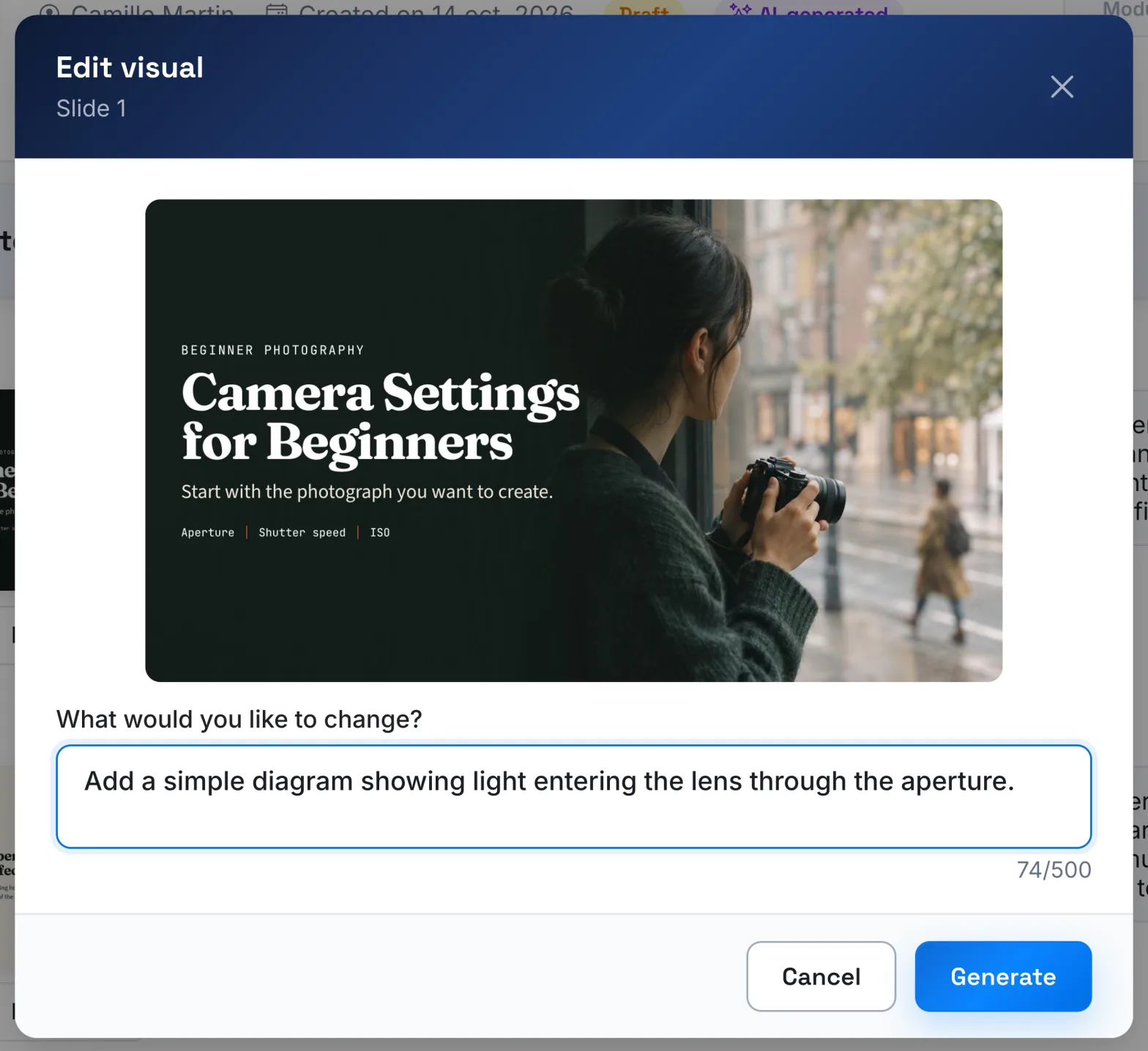
The window closes. The slide shows Regenerating… and stays locked while AI is working. When it finishes, the new visual replaces the old one, which remains available in the history. If it fails, the app shows "The slide edit failed."
The slide's script does not change: remember to adapt it if the visual changes a lot.
Go back to a previous version#
- Click Edit visual.
- Choose a version in Version history, for example "Version 1 of 3". Version 1 is the original visual. When the version shown is the one in use, the Applied version label appears.
- Click Restore this version.
AI always starts from the version shown in the history. If you start a generation from an older version, the versions that came after it are removed from the history.
Replace a slide's image#
When editing with AI is not offered:
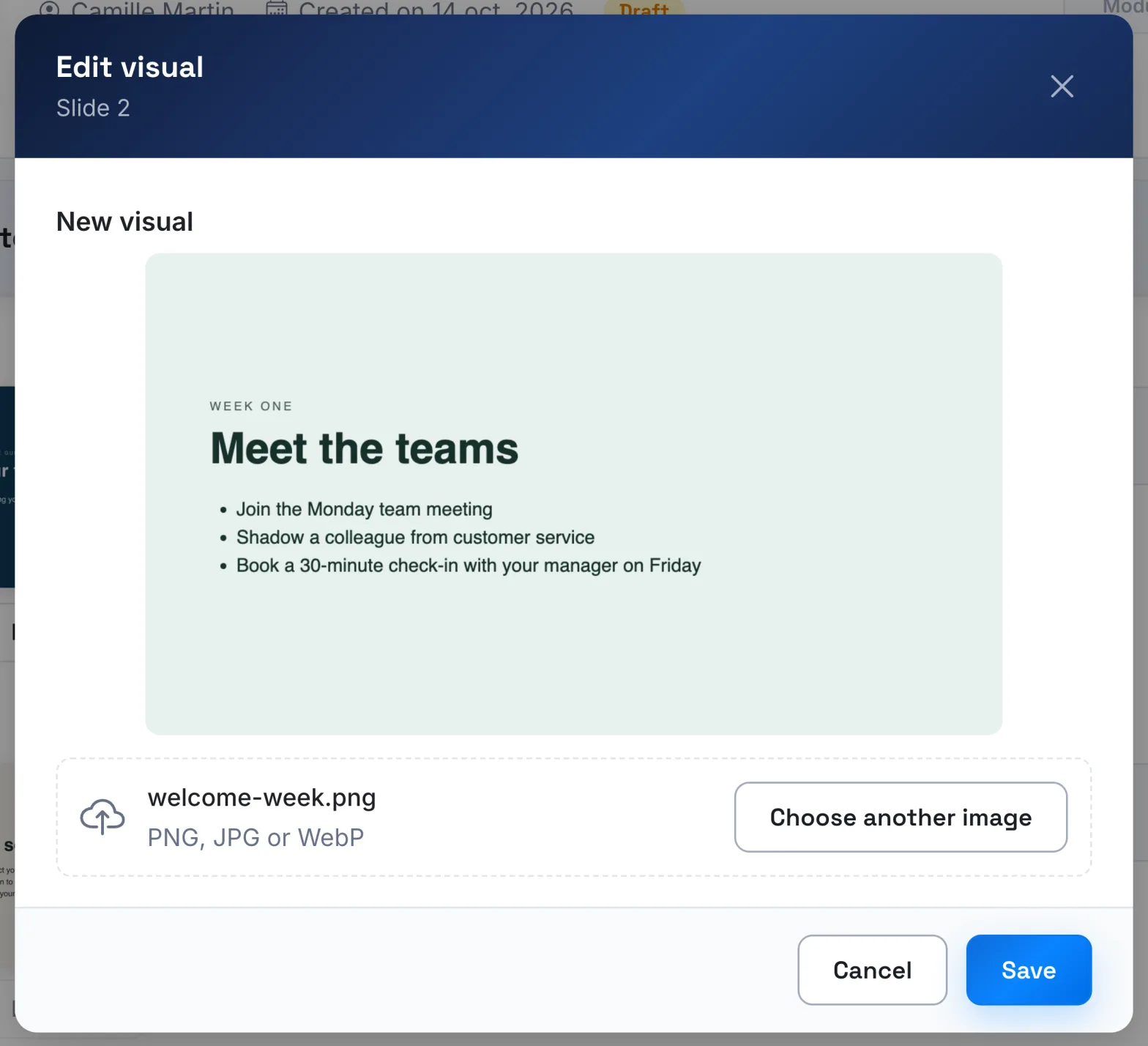
- Click Edit visual. The window opens on New visual.
- Click Choose another image and select a PNG, JPG or WebP image.
- Check the preview, then click Save.
If the file is not suitable, the app shows "Choose a valid PNG, JPG or WebP image."
Was this article helpful?
Thank you for your feedback!
Thank you. Tell us what is missing through Help and support in the app, and we will complete the article.