

Write the avatar script
Write, dictate or generate each slide's script, keep an eye on its length and understand how the avatar uses it with the learner.
In Create a course
- Understand the structure of a course
- Create a course
- Generate a course with AI
- Import a PDF or images
- Organise chapters
- Edit a slide
- Write the avatar script
- Edit a slide visual with AI
- Add interaction questions and surveys
- Add a video
- Create the end-of-chapter quiz
- Add resources to a course
- Saving and editing with others
- Preview a course
- Publish a course
- Course settings
- Course completion rules
- Trainer rights on a course
- Manage your courses
- Export a course to PDF
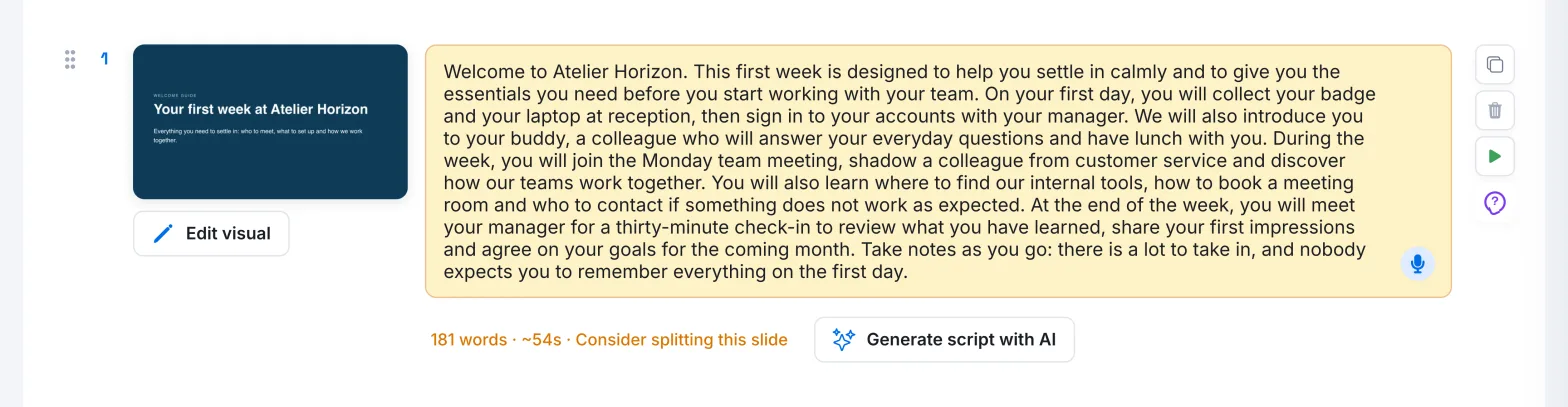
The script is the text from which the avatar presents a slide. You write it, dictate it or have AI draft it, then you review it. Each slide has its own script.
Before you start#
- You must be able to edit the course: see Trainers' rights on a course.
- To publish, each slide must have a script. Video slides are an exception: their introduction is optional (see Add a video).
Write or dictate the script#
- Open Trainings › your course › Edit training.
- Click in the slide's text field. While it is empty, it shows "Add your notes here".
- Type your text. It is saved automatically.
To dictate, click the microphone next to the field, speak, then click again: the message "Click again to end recording" reminds you. The transcribed text is added at the end of the script.
Generate the script with AI#
Click Generate script with AI, below the field. AI analyses the slide's visual and the course title and description, then writes what the avatar can say to present the slide.
- The generated text is added after the existing script. Review it and adjust it.
- Only the first slide of the course can receive an introduction.
- The text is written in the language chosen in your profile for Language of conversation with the avatar (see Your profile and languages).
- This button does not exist for videos or survey questions.
Keep an eye on length#
Below the field, the editor shows the script's word count and its estimated speaking time. As the text gets longer, an alert appears:
- "Consider splitting this slide", in orange: the slide would benefit from being split in two;
- "Too long, split into several slides", in red: spread the text over several slides.
These alerts are only advice: they do not prevent publication.
What the avatar does with your script#
The avatar does not read your script word for word. It rephrases it for speaking:
- it keeps the same information and roughly the same number of sentences;
- it keeps technical terms, names, dates, formulas and quotations exactly as they are;
- it adds no introduction or conclusion that is not in your script;
- it speaks in the language chosen by the learner and adapts its style to the learner's settings (see Personalise your tutor).
The avatar also draws on the visual. When you publish, Complement analyses the slide visuals: the avatar can then explain a diagram, a table or text shown in the image. If the learner interrupts to ask a question, the avatar answers, then returns to the slide's content.
To write a good script, see Draft an avatar script.
Was this article helpful?
Thank you for your feedback!
Thank you. Tell us what is missing through Help and support in the app, and we will complete the article.