

Add a video
Insert a YouTube, Vimeo, Dailymotion or Twitch video, or your own file, and prepare the short introduction the avatar says beforehand.
In Create a course
- Understand the structure of a course
- Create a course
- Generate a course with AI
- Import a PDF or images
- Organise chapters
- Edit a slide
- Write the avatar script
- Edit a slide visual with AI
- Add interaction questions and surveys
- Add a video
- Create the end-of-chapter quiz
- Add resources to a course
- Saving and editing with others
- Preview a course
- Publish a course
- Course settings
- Course completion rules
- Trainer rights on a course
- Manage your courses
- Export a course to PDF
A video slide adds a video to your course. The avatar can introduce it in a few words, then the video takes over.
Before you start#
- You must be able to edit the course: see Trainers' rights on a course.
- There are two possible sources: a link to a video platform, or your own MP4, WebM or MOV file. If a file is rejected, the app tells you, for example with the message "The file is too heavy".
Add the video#
- Open Trainings › your course › Edit training.
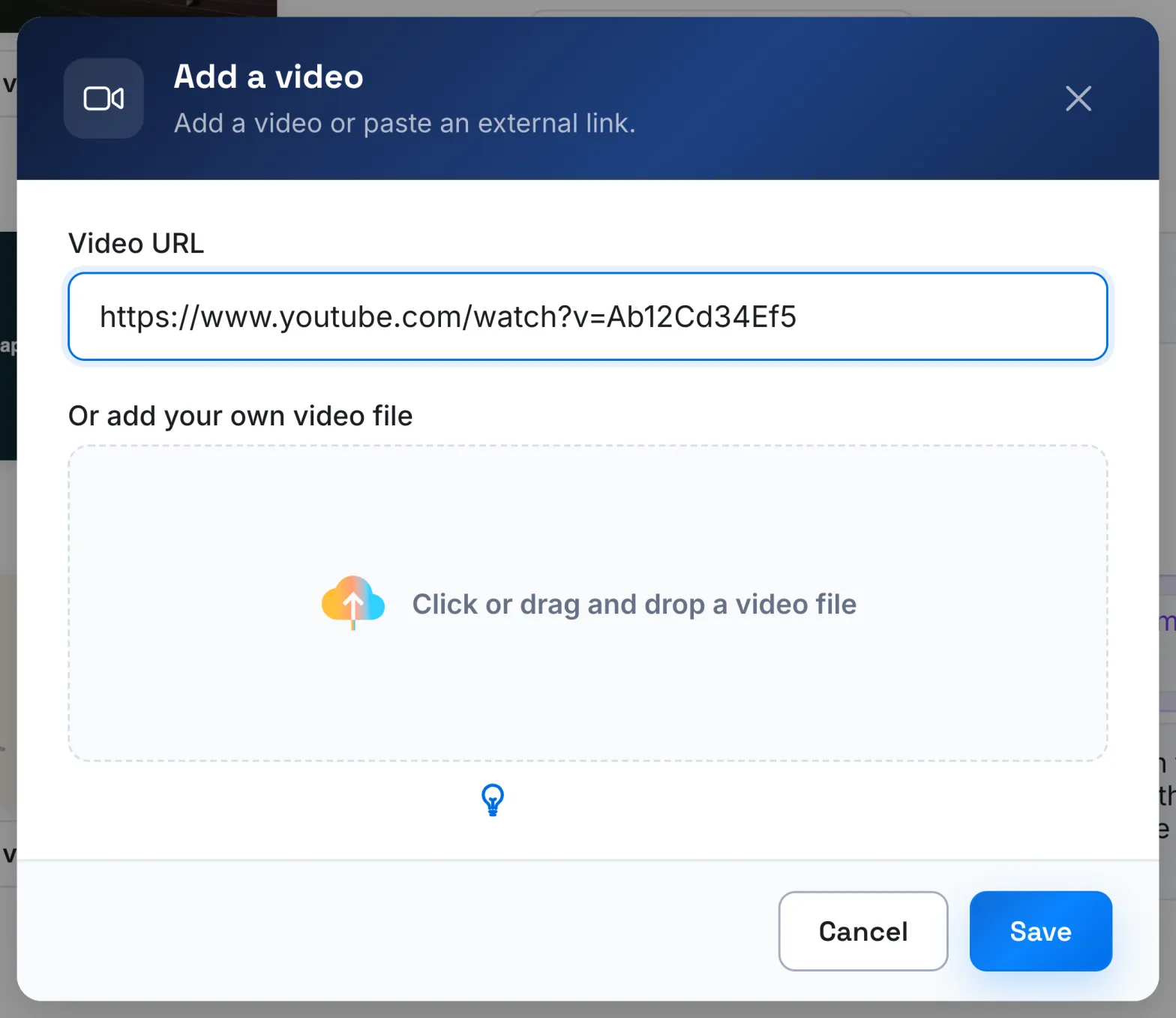
- Click Add content › Video, where you want the video. The Add a video window opens.
- Choose your source:
- paste a YouTube, Vimeo, Dailymotion or Twitch link into Video URL;
- or, under Or add your own video file, click or drag in your file, then wait for the upload to finish.
- Click Save.
The video slide is inserted at that point. For a file, the editor shows its name and duration. For a link, it shows the link, with the video title when it can find it.
The video is also added to the course's Resources tab: see Add resources to a course.
Write the introduction#
The video slide's text field contains what the avatar says before the video. It is optional.
- Keep it brief: the introduction announces the video, it does not summarise it. When the text gets longer, the editor shows "Keep it short: the script only introduces the video in 1-2 sentences".
- If needed, point out the part to watch.
In the player, the avatar says your introduction, then the video takes over. Without an introduction, the video is displayed straight away.

Change or remove a video#
- Change video, on the thumbnail: reopens the window to replace the link or the file.
- Expand: opens the video at full size so you can watch it.
- Duplicate this video: creates a copy just below.
- Delete the video: removes the video slide after confirmation.
A video slide has no interaction question, no Edit visual button and no AI script generation.
Publish with videos#
A video slide needs neither a visual nor a script for the course to be published. Test it before publishing with Test from here (training preview): see Preview a course.
Was this article helpful?
Thank you for your feedback!
Thank you. Tell us what is missing through Help and support in the app, and we will complete the article.