

Track usage
Track your learners' learning time: indicators, monthly usage and time spent on each course.
In Administer your platform
- Customise your organisation
- Manage the teaching team
- Track usage
- Activate your platform
- Manage your subscription
- View your enterprise contract
- Why is your platform read-only?
- Understand your administrator alerts and emails
- Enable SSO sign-in with Google or Microsoft
- White-label your platform
- Which options should you ask your Complement account manager for?
- Connect your LMS with LTI 1.3
- LMS: add courses, manage groups and grades
- Data security and privacy
The Usage page shows how much time your learners spend on courses. This learning time is also the time deducted from your trial hours or your hour credit.
Before you start#
- Only Administrators can access the Usage menu.
- The learning time and the course table are updated every hour. The date of the last update is shown above the table.
The indicators#
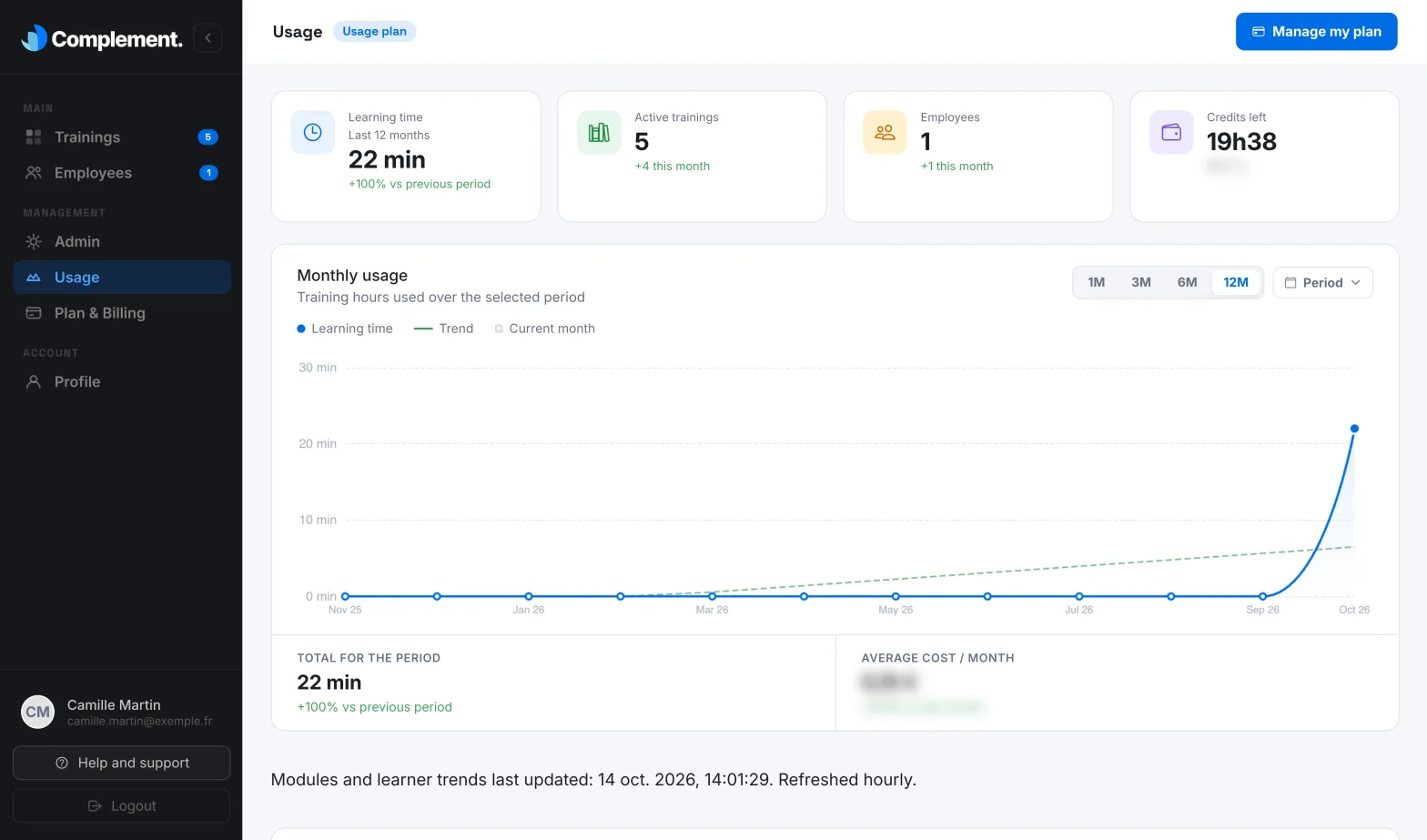
In the menu, open Usage. A badge next to the title shows your plan, and the Manage my plan button takes you to Plan & Billing.
At the top of the page, four indicators sum up your activity:
- Learning time: the time spent by your learners over the Last 12 months, compared with the previous twelve months;
- Active trainings: the number of published courses;
- Employees: the number of active learners, and how many were added this month;
- a fourth indicator depending on your plan: Seats used with learner seats, Credits left with hour credit, or Trial hours during the free trial.
When your trial hours or your credit are running out, an alert also appears at the top of the page: see Understand your administrator alerts and emails.
The monthly usage chart#
The Monthly usage chart plots the training hours used over the selected period.
- The 1M, 3M, 6M and 12M buttons show the last month, or the last three, six or twelve months. 12M is the period shown by default.
- The Period menu lets you choose a whole year (Full year) or a specific month.
- The legend distinguishes Learning time, Trend and Current month. During the trial, a dotted line marks the Trial limit.
- Below the chart, Total for the period compares the period shown with the previous one.
Time spent on each course#
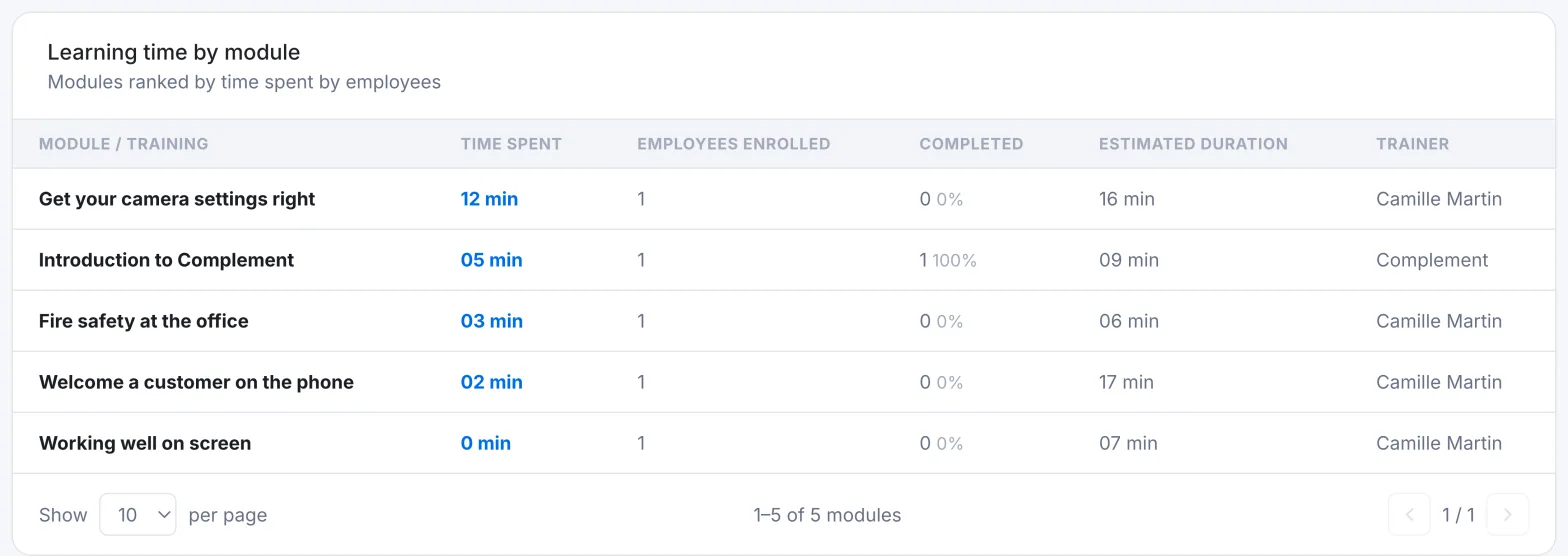
The Learning time by module table lists your published courses, from the most followed to the least followed. For each one, it shows:
- Time spent: the total time of its learners;
- Employees enrolled: the learners who had access to it through their team, even if they have changed team since;
- Completed: the number of learners who have finished it, and their share as a percentage;
- Estimated duration and Trainer, that is, the author of the course.
The Show menu sets the number of rows per page.
For details on a course, team by team, open its dashboard instead: see Read a course dashboard.
How learning time is counted#
Time is counted minute by minute while a learner is taking a course in the player. It is not counted:
- when the player tab is no longer shown on screen;
- while a video is playing;
- while the learner is viewing a resource;
- after a few minutes without activity. The player then shows "Are you still there?" and pauses the session until the learner clicks Resume.
Only learners' time is counted: when a member of your team tests a course in the player, their time does not appear here.
Was this article helpful?
Thank you for your feedback!
Thank you. Tell us what is missing through Help and support in the app, and we will complete the article.