

Which options should you ask your Complement account manager for?
AI generation, gamification, tutor, sector, SSO, white label, LMS, shared onboarding: the settings Complement manages for you.
In Administer your platform
- Customise your organisation
- Manage the teaching team
- Track usage
- Activate your platform
- Manage your subscription
- View your enterprise contract
- Why is your platform read-only?
- Understand your administrator alerts and emails
- Enable SSO sign-in with Google or Microsoft
- White-label your platform
- Which options should you ask your Complement account manager for?
- Connect your LMS with LTI 1.3
- LMS: add courses, manage groups and grades
- Data security and privacy
Some of your platform's settings are not made in the app. Your Complement account manager turns them on, turns them off or changes them for you.
Request a setting#
- Contact your Complement account manager. If you do not have one, use the Help and support form.
- Each setting applies to the whole platform: all your learners and your whole teaching team are affected.
The options set by Complement#
| Option | What it changes for your users |
|---|---|
| AI generation (Beta) | On by default. Your course creators can generate a course or a chapter with AI, and change a slide's visual with AI. When it is turned off, the Generate with AI buttons disappear from the editor, and a slide's visual is changed without AI. |
| Gamification | On by default. Your learners earn XP and badges, and see the Leaderboard menu. When it is turned off, these elements disappear and nothing more is awarded. |
| Avatar outfits | The outfits offered to your learners under each avatar, in the player's Settings, from Casual, Medical and Corporate. |
| Tutor humour | On by default. When it is turned off, the Humor setting disappears from the tutor settings, and the tutor keeps a neutral tone. |
| Tutor web search | On by default. The AI tutor can add to its answers with a web search. When it is turned off, it no longer does so. |
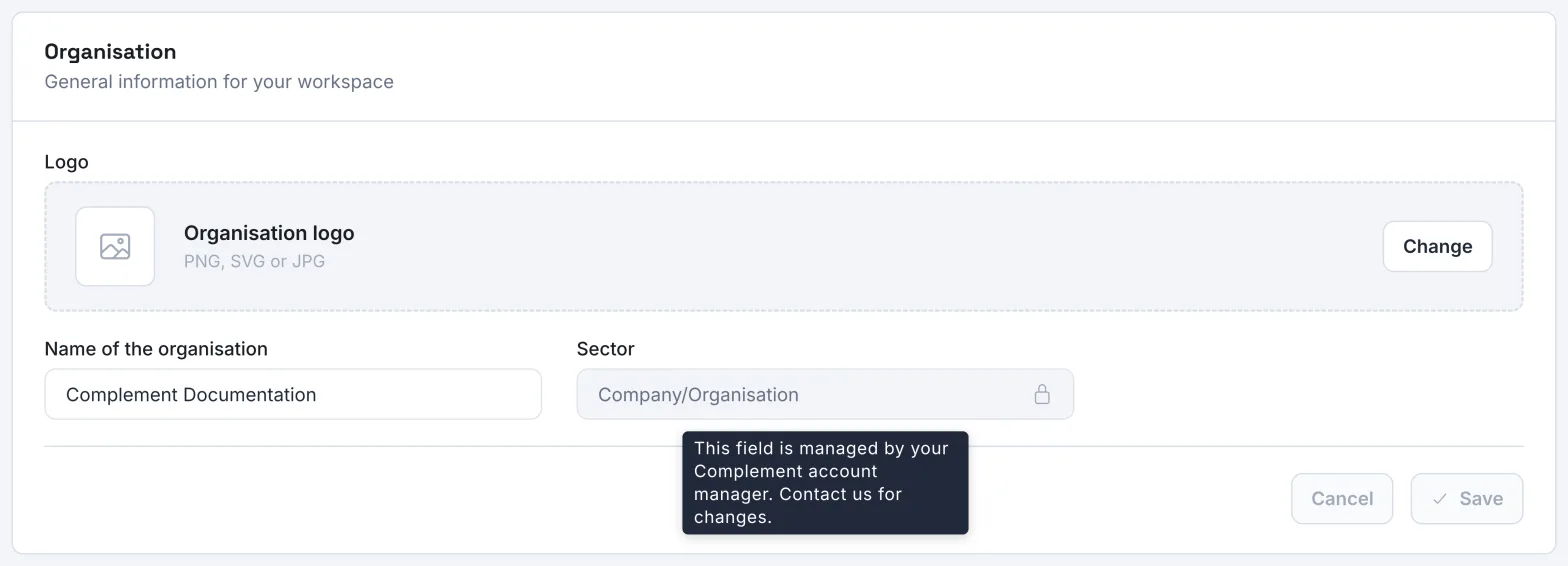
| Sector and vocabulary | The sector (School, Company/Organisation, Formation or Public sector) adapts the vocabulary of the whole interface. It is shown, locked, in Admin. |
| SSO sign-in | Your users sign in with their Google or Microsoft account. |
| White label | Your platform has its own address and the brand's logos, and its emails are sent in the brand's name. |
| LMS integration | The LMS Config menu appears: you connect your LMS there with LTI 1.3. |
| Automatic LMS group sync | On each launch from the LMS, the learner joins the teams mapped to their LMS groups. |
| Shared onboarding course | An onboarding course shared by several platforms, prepared and updated by Complement. It appears in your list of courses, but you can neither edit nor delete it. |
What you set yourself#
Your organisation's name and logo, how your learners are organised into departments and teams, and the members of your teaching team are set in the app, without going through Complement. See Customise your organisation and Manage the teaching team.
Was this article helpful?
Thank you for your feedback!
Thank you. Tell us what is missing through Help and support in the app, and we will complete the article.