

View your enterprise contract
What Plan & Billing shows for an enterprise plan: contract dates, seats, invoices by email and topping up credit by card.
In Administer your platform
- Customise your organisation
- Manage the teaching team
- Track usage
- Activate your platform
- Manage your subscription
- View your enterprise contract
- Why is your platform read-only?
- Understand your administrator alerts and emails
- Enable SSO sign-in with Google or Microsoft
- White-label your platform
- Which options should you ask your Complement account manager for?
- Connect your LMS with LTI 1.3
- LMS: add courses, manage groups and grades
- Data security and privacy
With an enterprise plan, your contract is agreed with Complement: seats, dates and, where applicable, hour credit. It is an annual contract, billed once a year. Plan & Billing shows you this contract in read-only mode.
Before you start#
- Only Administrators can access Plan & Billing.
- For any change to your contract, contact your Complement account manager.
What Plan & Billing shows#
- In the menu, open Plan & Billing.
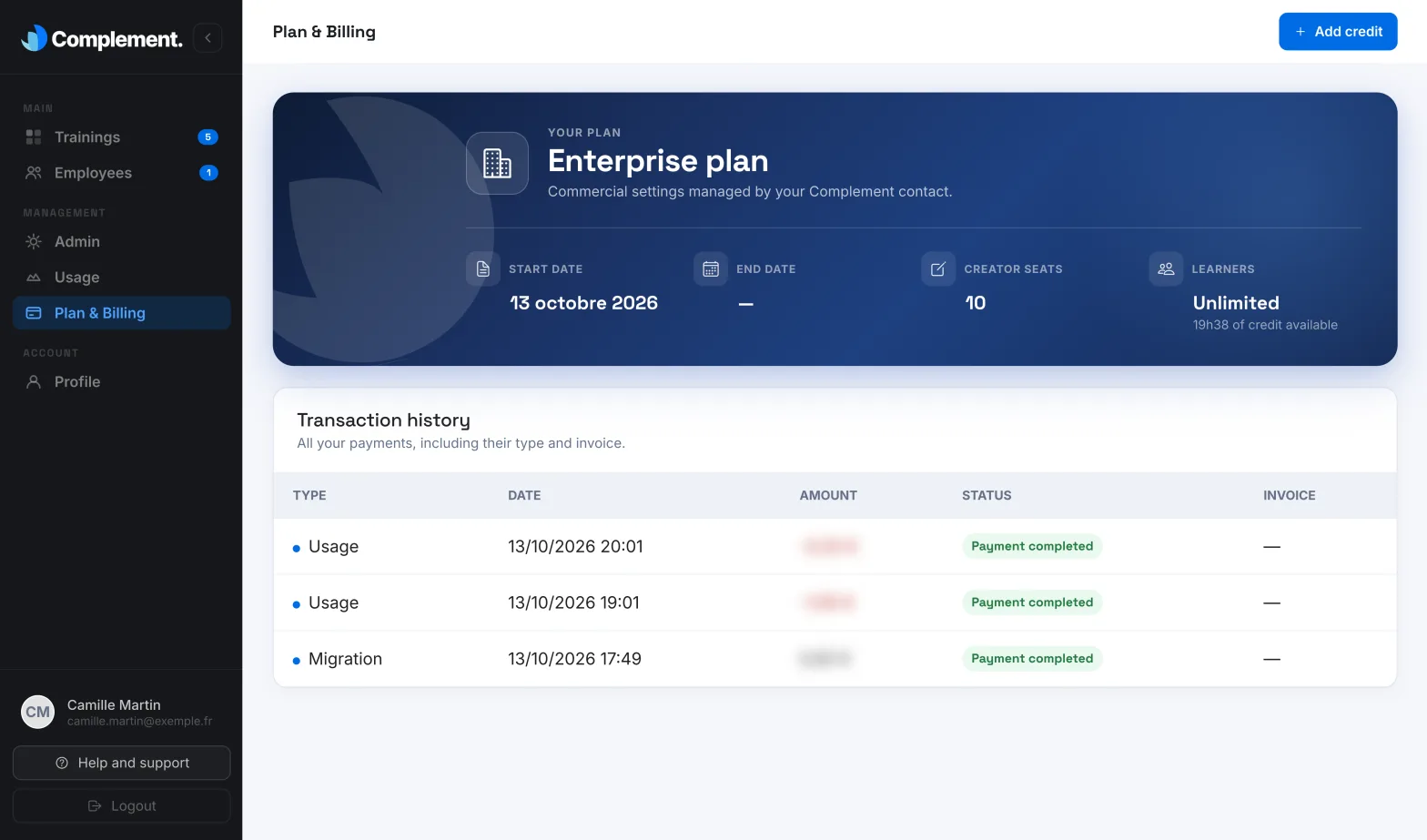
- Look at the Enterprise plan block: "Commercial settings managed by your Complement contact."
This block shows:
- the Start date and End date of your contract;
- your Creator seats;
- your Learner seats, or Learners if your contract uses hour credit, with the credit still available.
When a number is not limited, the box shows Unlimited. The seat numbers in your contract apply: once all seats are taken, you can no longer add a course creator or a learner. No button on this page changes the contract.
Seat-based contract#
Below the block, the Your billing is managed by your Complement contact box explains: "Your licences and billing period are agreed commercially. Your invoices are sent by email and cannot be viewed here."
Your contract remains active up to and including its end date. The next day, if it has not been extended, the platform becomes read-only with the message "Your managed licence has expired. The platform is read only." To extend your contract, contact your account manager before that date.
Hour credit contract#
Your learners are unlimited. Each hour of learning is deducted from the credit set out in your contract. This type of contract has no end date: the End date box shows a dash.
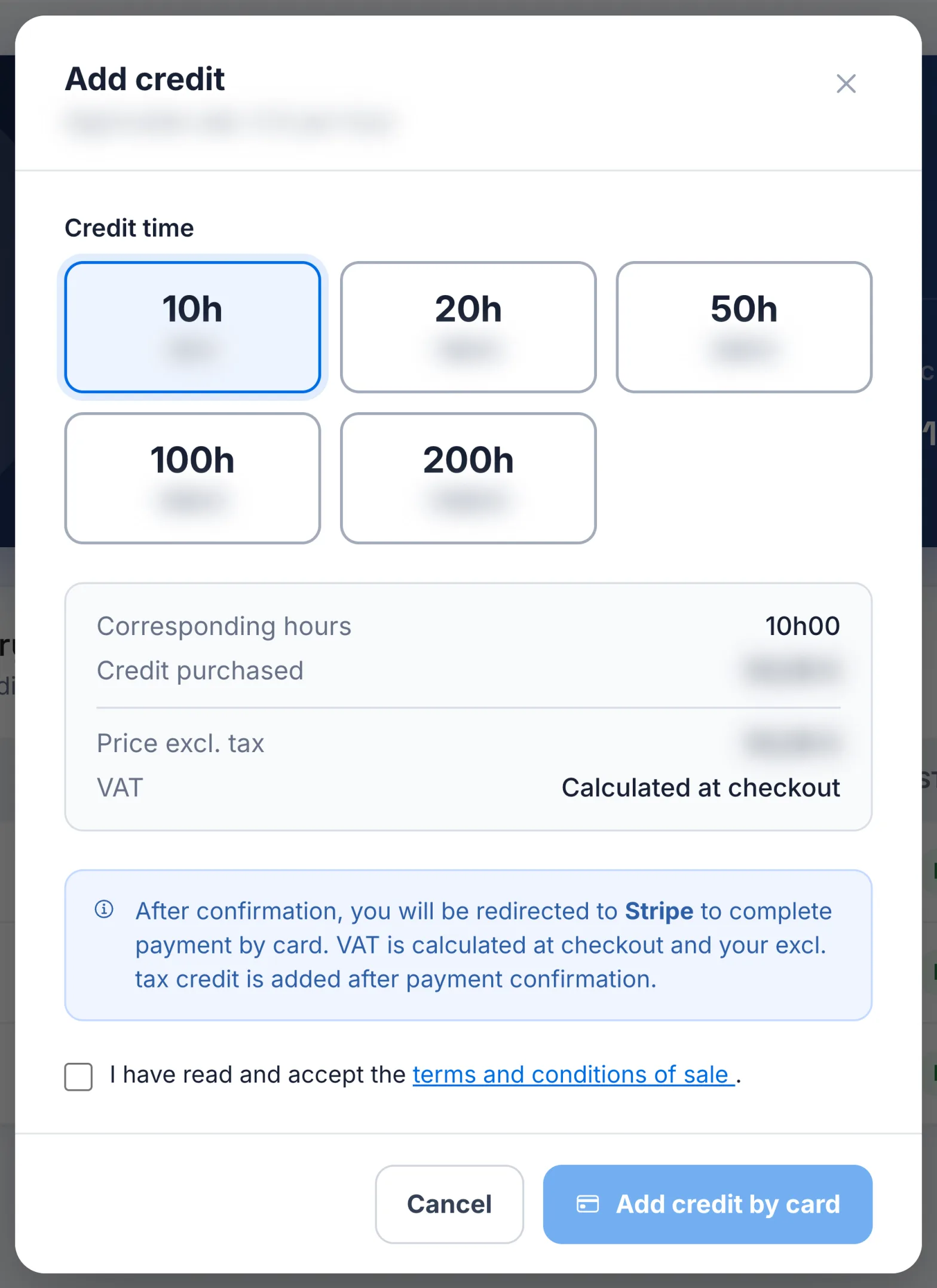
You can top up your credit by card:
- Click Add credit, at the top right of Plan & Billing.
- Choose a Credit time.
- Tick the box to accept the terms and conditions of sale.
- Click Add credit by card and complete the payment on Stripe's secure page.
VAT is calculated at payment. Your credit is added after the payment is confirmed. Your account manager can also adjust your credit.
The Transaction history table lists the transactions on your credit. Click See invoice to open an invoice, when there is one.
When your credit becomes low, and then if it runs out, Administrators receive an email. Credit that has run out makes the platform read-only until you top up. See Understand your administrator alerts and emails.
Was this article helpful?
Thank you for your feedback!
Thank you. Tell us what is missing through Help and support in the app, and we will complete the article.