

Edit a slide
Expand, duplicate, move or delete a slide, add new ones and test the course from any slide.
In Create a course
- Understand the structure of a course
- Create a course
- Generate a course with AI
- Import a PDF or images
- Organise chapters
- Edit a slide
- Write the avatar script
- Edit a slide visual with AI
- Add interaction questions and surveys
- Add a video
- Create the end-of-chapter quiz
- Add resources to a course
- Saving and editing with others
- Preview a course
- Publish a course
- Course settings
- Course completion rules
- Trainer rights on a course
- Manage your courses
- Export a course to PDF
Each slide combines a visual and a script. Its buttons let you touch it up, duplicate it, move it or delete it, and test the course from that slide.
Before you start#
- You must be able to edit the course: see Trainers' rights on a course.
- Slides are in Trainings › your course › Edit training.
- For videos, see Add a video. For surveys, see Add interaction questions and surveys.
A slide's buttons#
- Expand, on the visual: shows the slide at full size.
- Edit visual, below the visual: regenerates the slide with AI or replaces its image. See Edit a slide visual with AI.
- Duplicate this slide: creates a copy just below, visual and script included.
- Delete the slide: deletes the slide after confirmation.
- Test from here (training preview): opens the player from this slide.
- Avatar interaction question: adds a question that the avatar asks on this slide. See Add interaction questions and surveys.
For the slide's text, see Write the avatar script.

Add a slide#
A slide always starts from an image.
- Click Add content › Slide, below the slide after which you want to add content, or at the top of the chapter.
- Choose one or more images. Each image becomes a slide, inserted at that point.
- Write the script for each new slide.
To turn a PDF into slides, see Import a PDF or images.
Move a slide#
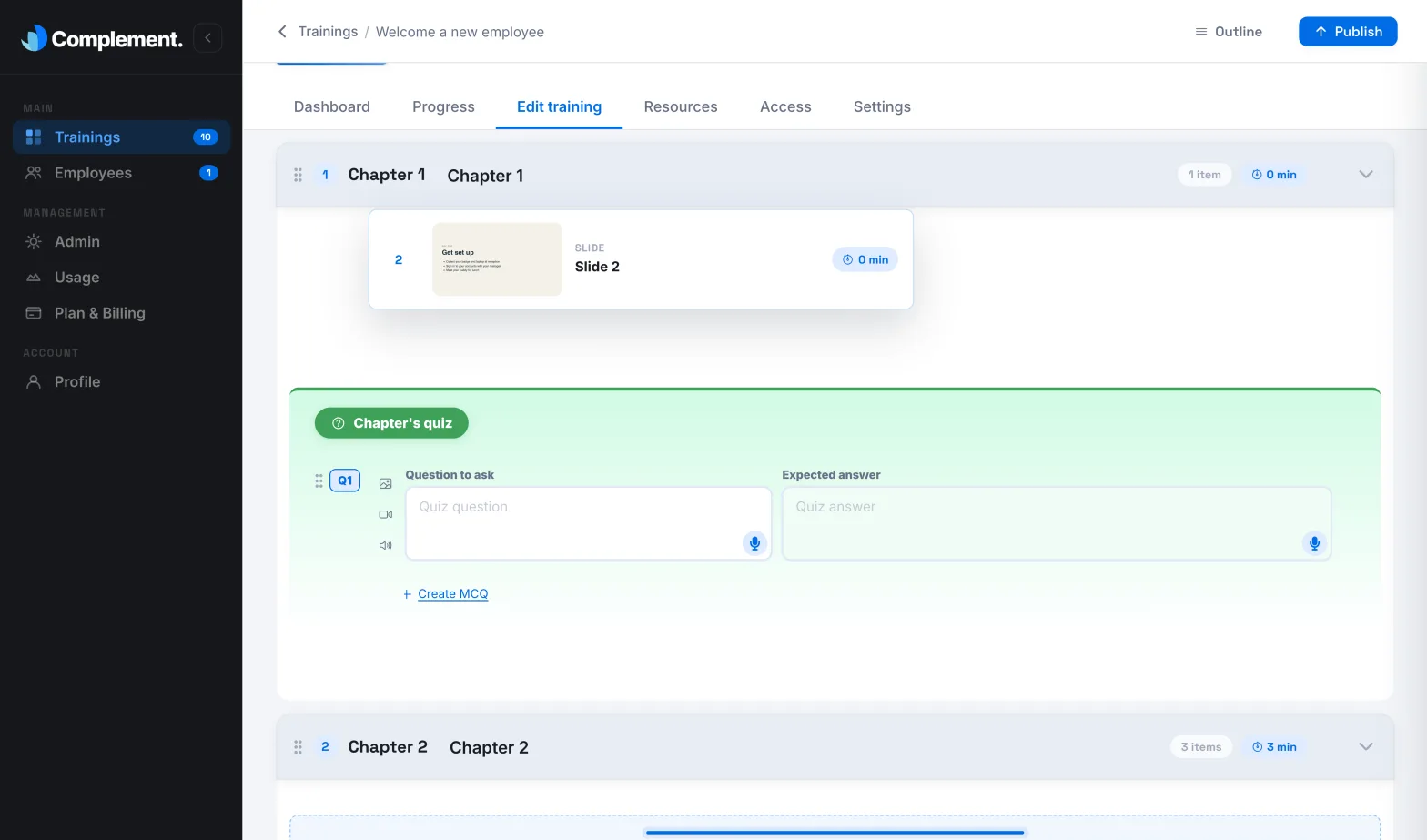
Grab the slide by the dotted handle near its number, then drag it:
- to another place in the same chapter;
- or into another chapter. If that chapter is collapsed, hold the slide over its header: the chapter expands after a moment.
The move is saved immediately. If it fails, the slide goes back to its original place.
Delete a slide#
- Click Delete the slide.
- Confirm with Delete.
Test from a slide#
Test from here (training preview) saves the draft, then opens the player from this slide, as a learner will see it.
- The button is greyed out as long as the slide has neither a script nor a video, and while a save is in progress.
- If a chapter of the course contains no slide, the app shows "A chapter must contain at least one slide". Fill that chapter or delete it, then try again.
See Preview a course.
Was this article helpful?
Thank you for your feedback!
Thank you. Tell us what is missing through Help and support in the app, and we will complete the article.