

Saving and editing with others
How your changes are saved, and what happens when several people open the same course at the same time.
In Create a course
- Understand the structure of a course
- Create a course
- Generate a course with AI
- Import a PDF or images
- Organise chapters
- Edit a slide
- Write the avatar script
- Edit a slide visual with AI
- Add interaction questions and surveys
- Add a video
- Create the end-of-chapter quiz
- Add resources to a course
- Saving and editing with others
- Preview a course
- Publish a course
- Course settings
- Course completion rules
- Trainer rights on a course
- Manage your courses
- Export a course to PDF
Complement saves your work as you go, in the course draft. To prevent two people from overwriting each other's changes, only one person at a time can edit the content of a course.
Automatic saving of content#
In the Edit training tab, every change is saved automatically, a few moments after you stop typing. At the top right, the indicator shows Saving changes..., then Saved.
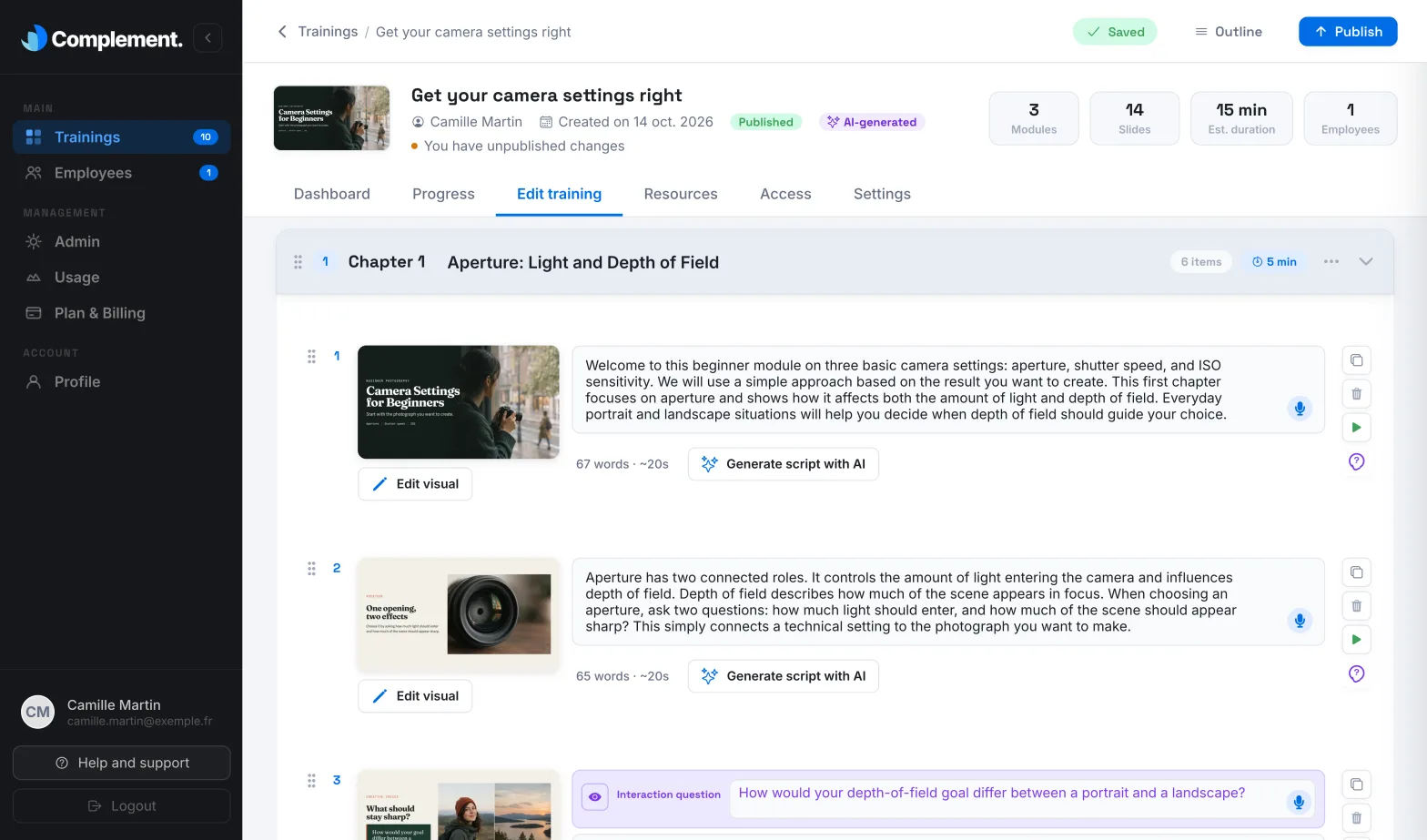
While saving, Publish, Outline and the preview buttons are unavailable for a few moments. If saving fails, the message "An error occured and the training could not be saved" appears.
These changes stay in the draft: your learners only see them after you publish. See Publish a course.
Saving in the Settings tab#
- Options such as toggles, dates, the passing threshold or rights are saved as soon as you change them.
- The background behind the avatar is saved as soon as you change it.
- The title, authors and description need an action from you. As soon as you change them, a Save button appears at the top right. Click it: the message "Your training was successfully updated" confirms the save.
If you change tab or leave the course without saving the title, authors or description, the Unsaved changes window opens:
- Stay on page takes you back to the form, so you can click Save;
- Leave without saving discards these changes.
If you close the browser tab at that moment, your browser asks you to confirm.
Only one person edits the content at a time#
When you open the Edit training tab, you take control of the content. If another person opens the same tab in the meantime:
- a window tells them "First name Last name is editing the training";
- the content is shown to them in read-only mode. They can view and preview it, but cannot edit or publish it;
- editing is re-enabled for them automatically as soon as you release the course.
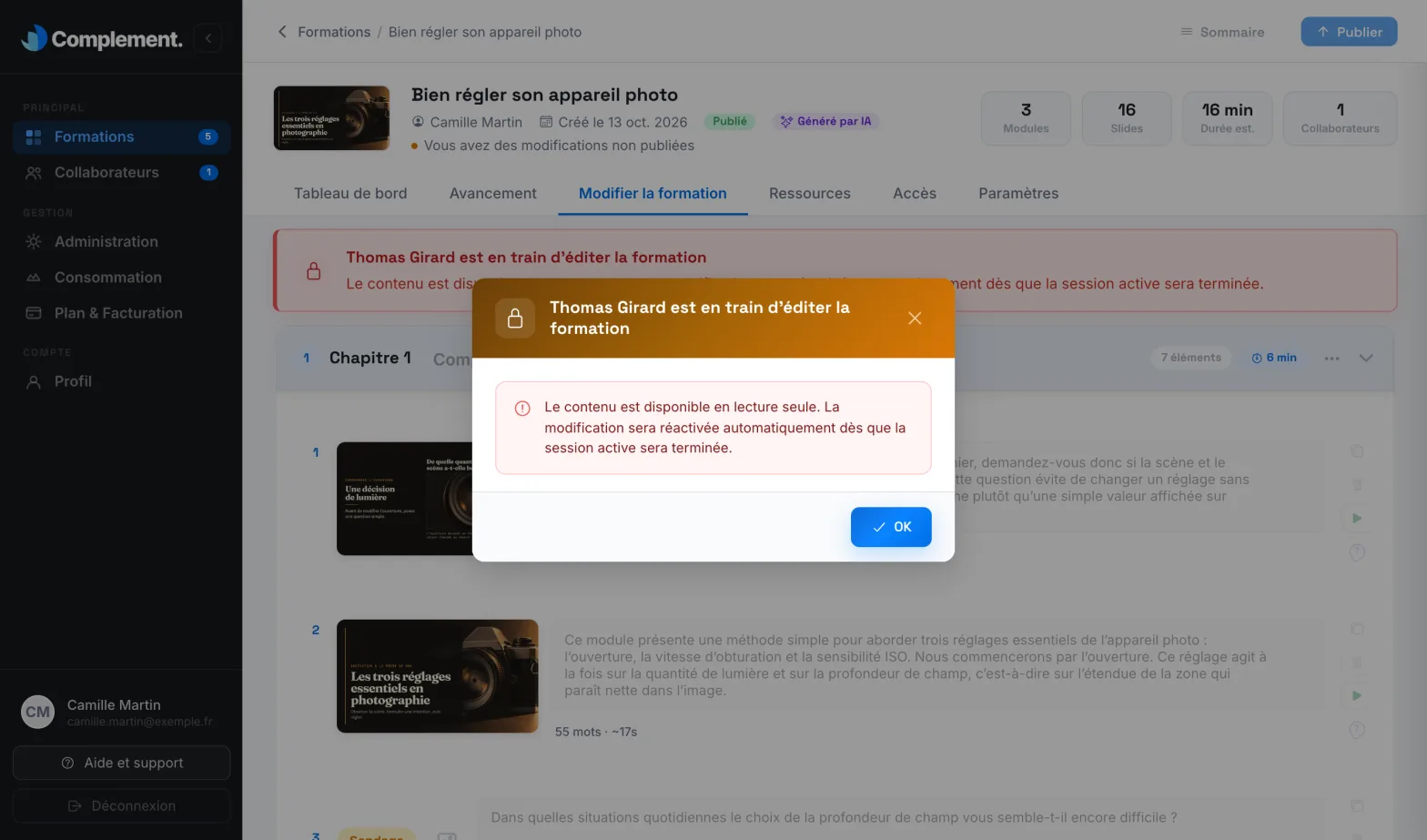
If you open the course yourself in a second tab, that tab switches to read-only mode with the message "Your training is already open in another tab". Close the other tab, or wait for its session to end.
This lock only applies to the Edit training tab. The other tabs, such as Settings or Resources, remain open to everyone who can edit the course.
When is the course released?#
The course is released:
- when you leave the Edit training tab;
- when you go back to the course list or close the page;
- when your browser stops responding for a few minutes, for example after a loss of connection.
As long as nobody is waiting, you keep control, even when inactive. However, if another person is waiting to edit the course and you stay inactive for a few minutes, Complement takes control away from you. You return to the course list, with the message "You left training editing".
Was this article helpful?
Thank you for your feedback!
Thank you. Tell us what is missing through Help and support in the app, and we will complete the article.