

Export a course to PDF
Download a PDF of the slides in the published version of an AI-generated course, from the Resources tab.
In Create a course
- Understand the structure of a course
- Create a course
- Generate a course with AI
- Import a PDF or images
- Organise chapters
- Edit a slide
- Write the avatar script
- Edit a slide visual with AI
- Add interaction questions and surveys
- Add a video
- Create the end-of-chapter quiz
- Add resources to a course
- Saving and editing with others
- Preview a course
- Publish a course
- Course settings
- Course completion rules
- Trainer rights on a course
- Manage your courses
- Export a course to PDF
For a course generated by AI, you can download a PDF of its slides. The PDF reproduces the published version, page by page.
Before you start#
- The course was generated by AI. It then shows the AI-generated badge below its title, in the editor. This also applies to a course created manually in which you generated a chapter with AI. See Generate a course with AI.
- The course has been published at least once. See Publish a course.
- You must be able to edit the course: in read-only mode, the button does not appear.
Export the PDF#
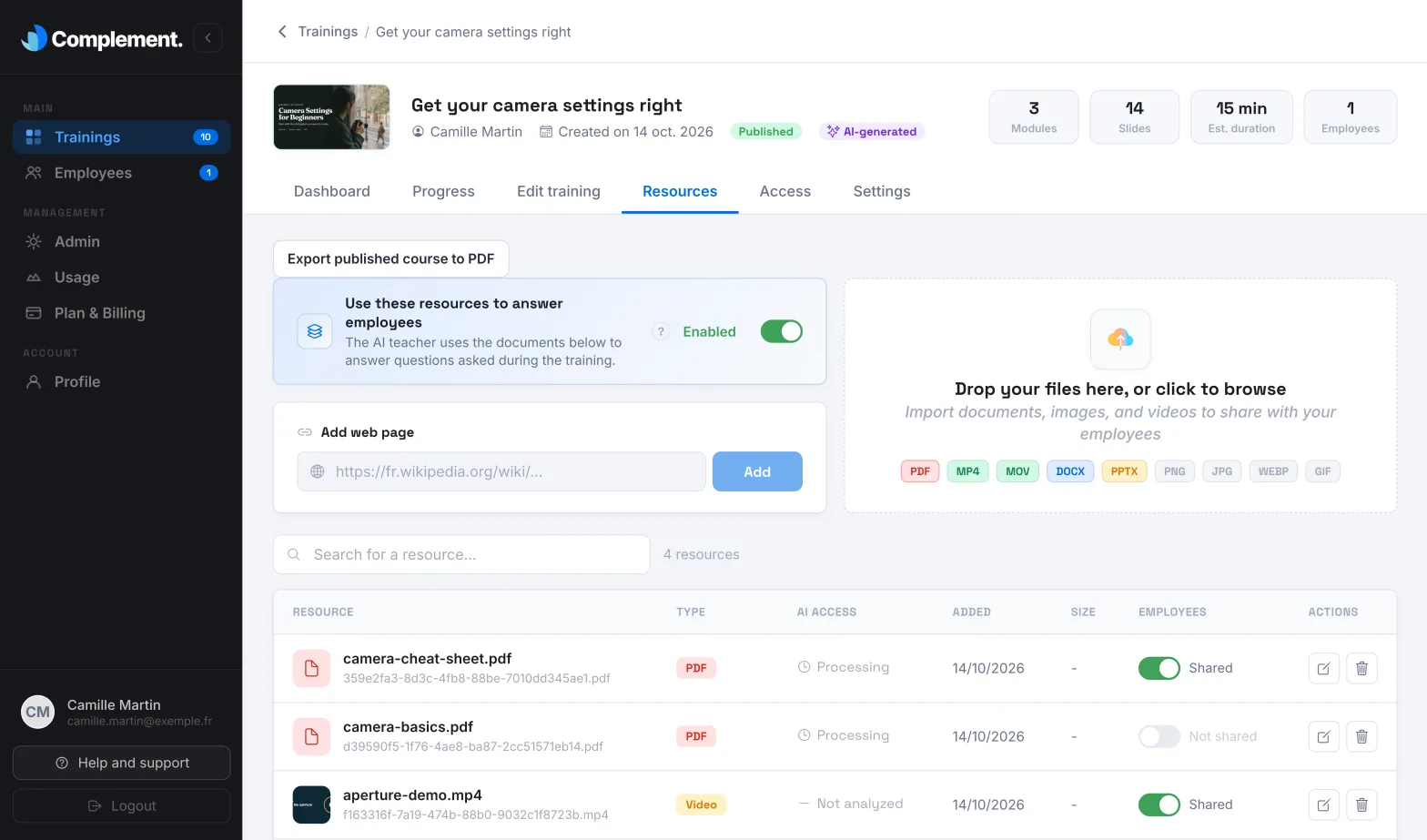
- Open Trainings › your course › Resources.
- Click Export published course to PDF, at the top of the tab.
- Wait while the file is prepared. It then downloads, named after the course title.
What the PDF contains#
- One page per slide of the published version, in chapter and slide order.
- Each page reproduces the visual of the slide. All pages take the format of the first slide.
- For a video slide, the page shows the preview image of the video. Clicking the page opens the video.
The PDF does not contain the avatar scripts, the quizzes or the resources. Changes you have not yet published are not included: publish them before exporting.
The PDF in your resources#
The export also adds the PDF to the course's list of resources. Its name starts with "SUPPORT", followed by the course title. Each new export replaces it.
For a course that was not generated by AI, there is no export button. Complement adds this "SUPPORT" PDF to the resources each time you publish.
If the export fails#
The message "An error occured" appears. Check that the course has been published, then run the export again.
Was this article helpful?
Thank you for your feedback!
Thank you. Tell us what is missing through Help and support in the app, and we will complete the article.