

Roll out Complement in a public body or local authority
Public servants, departments and directorates: scoping with your account manager, SSO, accounts, teaching team, privacy, hosting in Europe and tracking.
In Rollout guides
This guide supports a government body, a public institution or a local authority that trains its public servants with Complement. Your Complement account manager supports you from scoping to rollout.
Step 1: scope the rollout with your account manager#
Agree with your account manager on the settings that are not made in the app:
- the Public sector, which adapts the vocabulary of the whole interface;
- SSO sign-in with your public servants' Microsoft or Google account. See Enable SSO sign-in with Google or Microsoft;
- white label, if you want an address and emails in your name. See White-label your platform;
- the other options. See Which options should you ask your Complement account manager for?.
If your contract is managed by Complement, Plan & Billing shows it under Enterprise plan, with your Public servant seats. See View your enterprise contract.
Step 2: reproduce your directorates and departments#
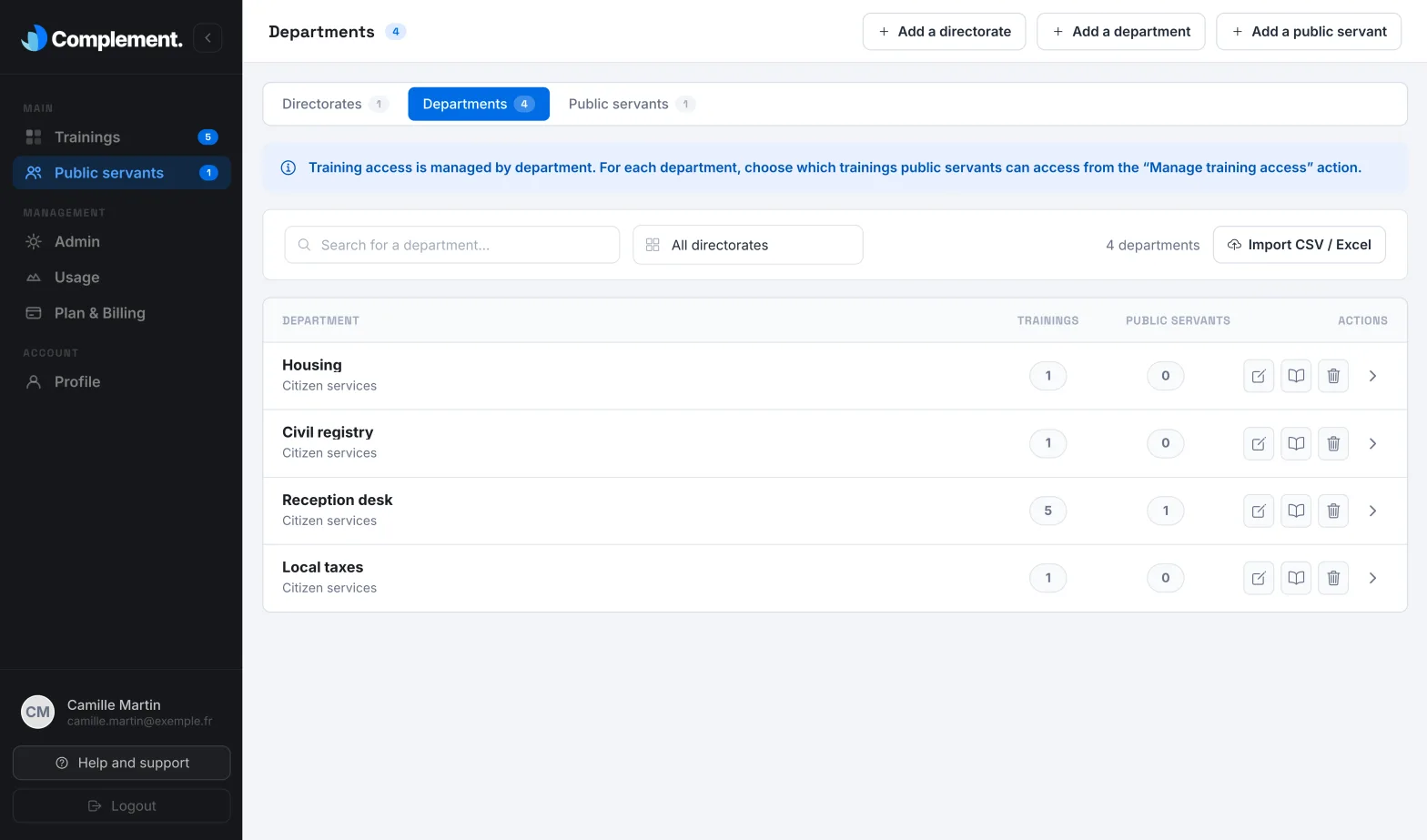
In Admin, on the Public servant organization card, choose the Advanced journey: your directorates then group your departments together. Access to courses is given by department, and tracking can be filtered by directorate and by department.
Open Public servants, click Add a directorate, then Add a department. See Organise departments and teams.
Step 3: create your public servants' accounts#
- For a whole workforce, click Import CSV / Excel: one row per public servant, with their directorate and department. Missing directorates and departments are created. If you do not have enough licences, the review shows how many seats are missing. See Import learners from a CSV or Excel file.
- For a single public servant, click Add a public servant. See Add a learner.
With SSO, choose SSO account · notification only for an account created individually. When importing, do not enter a password: in both cases, the public servant receives an email inviting them to sign in with your organisation's account, with no password to create.
Step 4: build the teaching team#
| Role | For whom | Creator seat |
|---|---|---|
| Administrator | The person who manages the platform and the teaching team | Yes |
| Content manager | The training team, which manages all courses, departments, public servants' accounts and the onboarding course | Yes |
| Trainer | A subject-matter expert who creates their own courses | Yes |
| Guest | A reviewer, for example from the legal team, who views without editing | No |
Trainers' rights on other people's courses are set course by course. See Manage the teaching team and Trainer rights on a course.
Step 5: launch the courses#
- Publish an onboarding course and turn it on before inviting your public servants: it only starts the first time they sign in. See Launch an onboarding course at first sign-in.
- Publish each course, then tick the departments concerned in its Access tab. See Give access to a course.
- Announce it with the Send an email to public servants window, then set a Limit completion date and Email reminders. See Inform and remind your learners.
Step 6: answer privacy questions#
- Complement is hosted in Europe: the sign-in page says so with the words "Hosted in Europe".
- In a course's dashboard and in its exports, the questions asked to the avatar and the quiz answers are shown without the public servant's name. No one in your teaching team can view a public servant's conversation with the avatar.
- The Progress tab and its export are personally identifiable: for each public servant, they give their department, progress, score and status.
- A public servant's camera stays in their browser: their image is neither sent nor recorded.
- Deleting a public servant anonymises their account.
See Data security and privacy and the Security and compliance (in French) page. For the technical requirements to send to your IT department, see Roll out Complement in a large organisation and What are the system requirements for Complement?.
Step 7: track the rollout#
- Each course's Dashboard gives the figures department by department. See Read a course's dashboard.
- The Progress tab can be filtered with All directorates and All departments, and Export downloads its data as CSV. See Track learners' progress in a course.
- Usage shows your public servants' learning time, month by month. See Track usage.
Checklist#
- Sector, SSO and options agreed with your account manager.
- Advanced journey chosen, directorates and departments in place.
- Public servants' accounts created, enough licences.
- Teaching team roles assigned.
- Onboarding course turned on before the invitations.
- Privacy answers and requirements sent to your IT department.
- Progress tracked by directorate and by department.
Was this article helpful?
Thank you for your feedback!
Thank you. Tell us what is missing through Help and support in the app, and we will complete the article.